The dish library is the home for every dish you serve. Each dish lives in one place, and your menus pull from it. Add a dish to as many menus as you need, edit it once, and every menu picks up the change.
How it works
Each restaurant has its own dish library. Every dish you’ve created lives there.
A menu is a list of sections. A section contains dishes from your library. If you edit a dish in the library, every menu that uses it picks up the edit.
If you run more than one restaurant, each has its own library. By default, dishes are not shared across restaurants.
The Dishes page
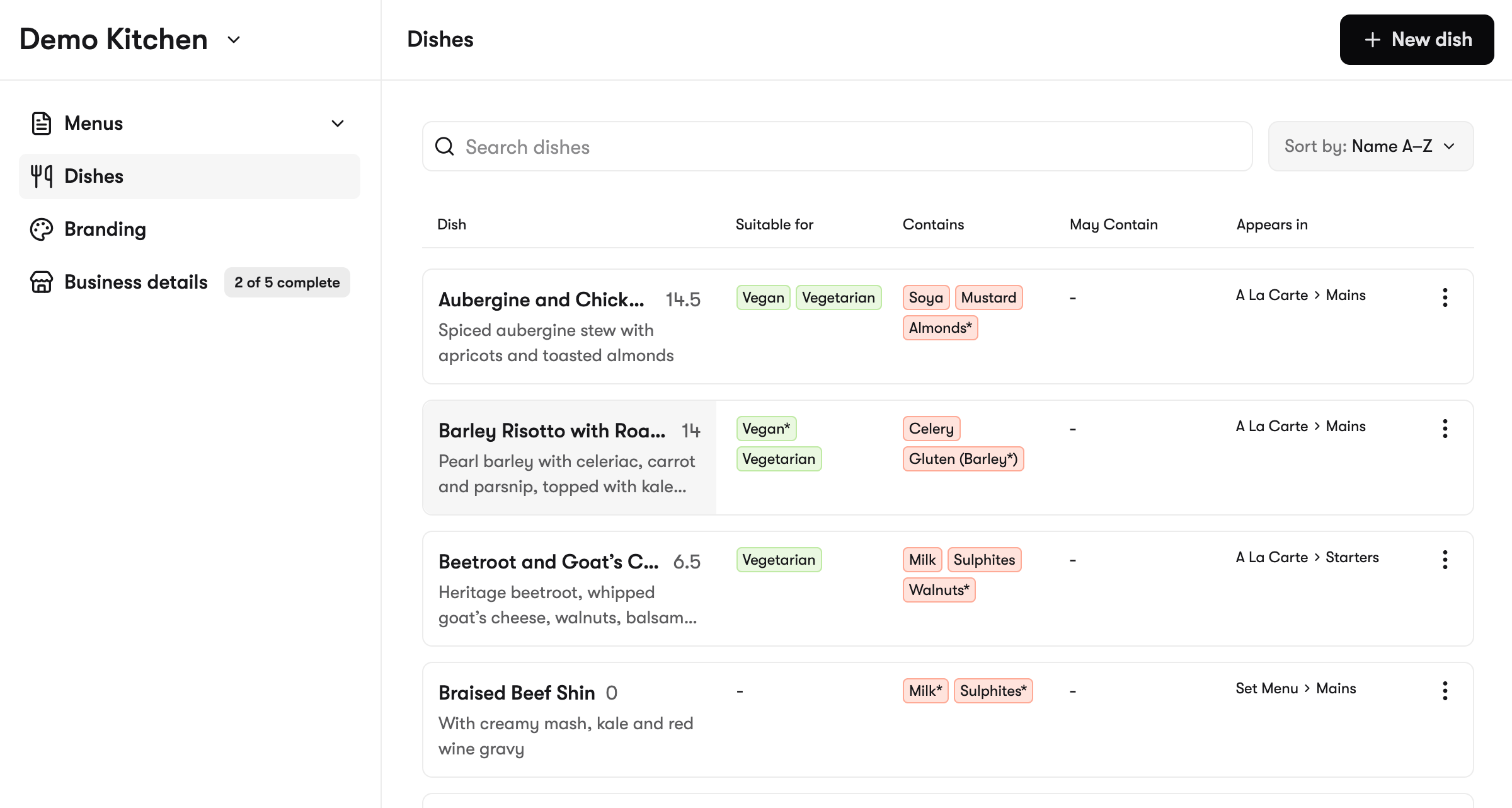
Open Dishes from the sidebar to see every dish in your library.
Each row shows the dish name, a price preview, and three sets of chips:
- Suitable for — diets the dish works for (vegan, gluten-free, and so on)
- Contains — allergens in the dish
- May contain — cross-contamination risks
label* – the allergen or diet can be modified
There’s also an Appears in column listing every menu and section the dish is currently on, shown as Menu > Section. At a glance you can see where each dish is being used.
From here you can search by name or description, sort by name, newest, or most recently updated, and edit or delete any dish in your library.
Adding a dish to a menu
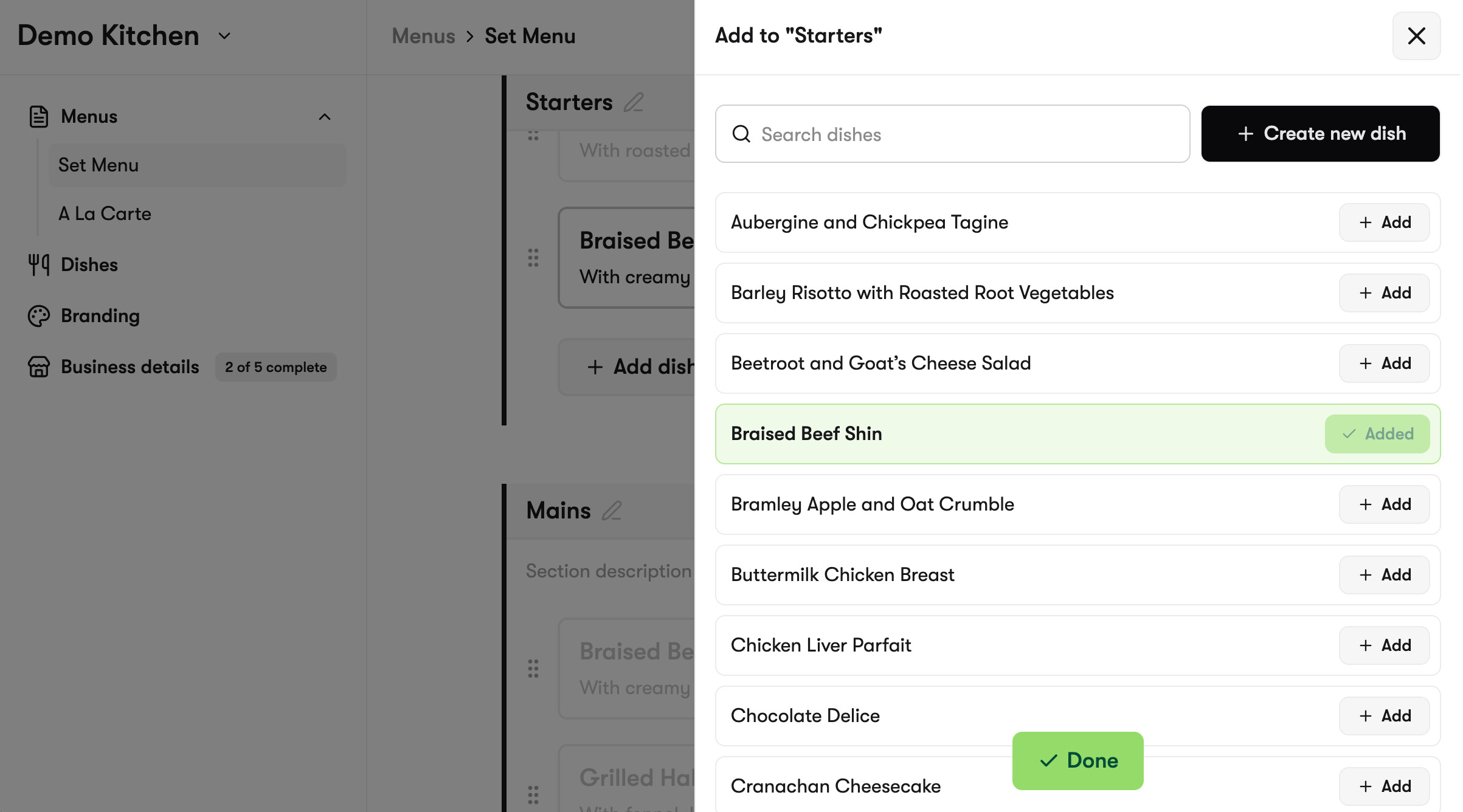
When you add a dish to a section, the picker shows your whole library along with a “create new” option.
Dishes already on this menu are marked, so you won’t duplicate them by mistake. Picking an existing dish drops a reference into the section without re-entering any details. Creating a new dish adds it to the library and places it in the section in one step.
When you build a new menu, you can pull from everything you’ve already built.
Editing a dish that’s on more than one menu
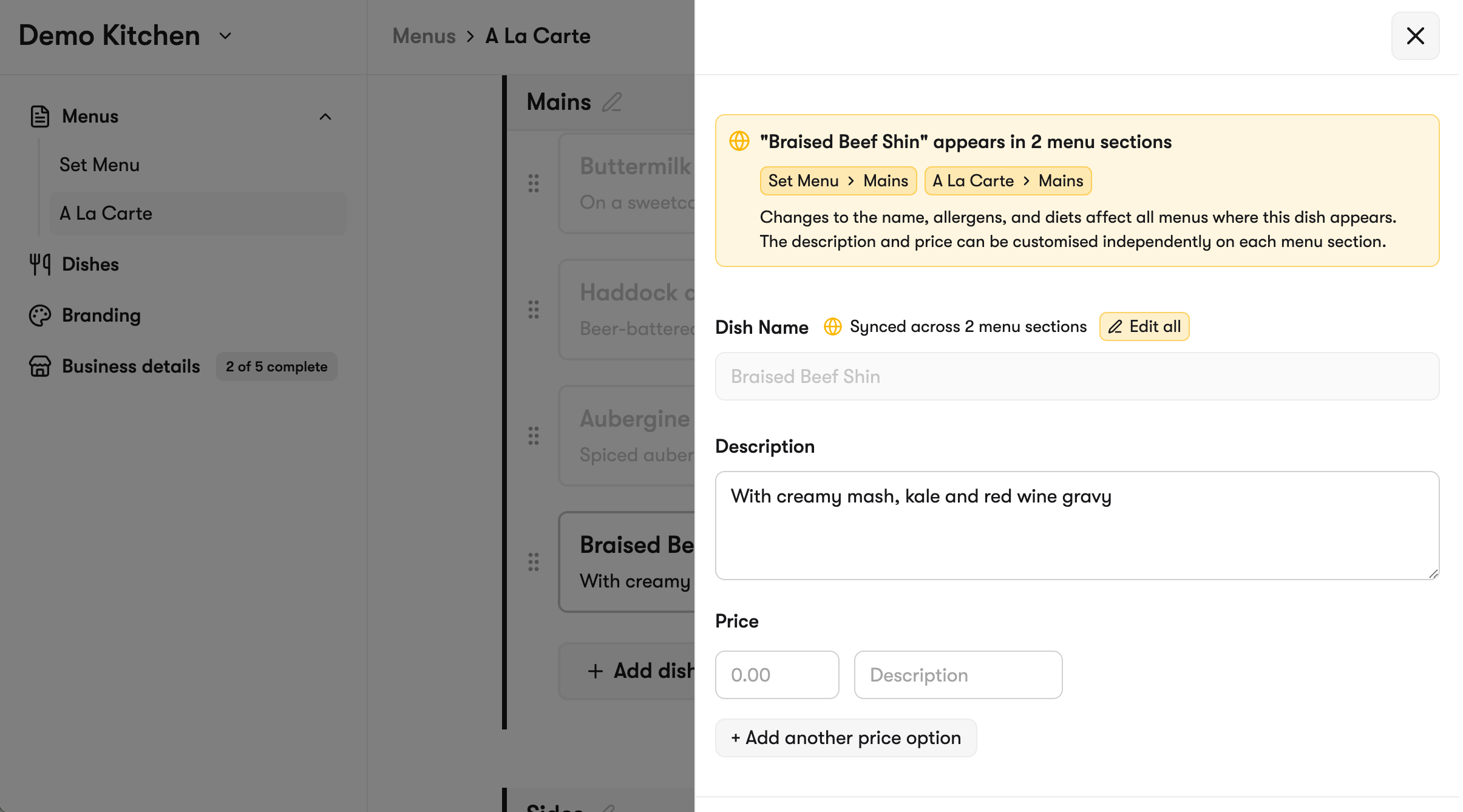
If a dish appears in more than one place, the editor tells you. You’ll see every Menu > Section the dish is currently on, so it’s clear what your edit will change.
Some fields are always shared across every menu the dish is on:
- Name
- Suitable for (diets)
- Contains and May contain (allergens)
These describe the dish itself. A burger has the same allergen profile whether it’s on lunch or dinner, so this information stays consistent everywhere. That’s deliberate. Allergen and diet information should never read differently in two places.
Other fields can vary per menu:
- Description
- Prices
If your lunch burger is £12 and your dinner burger is £15, you can change the price on one menu without touching the other. Same for descriptions, if you want different copy in different contexts.
Remove vs delete
Two different actions, worth knowing the difference:
Remove from this section (inside a menu) takes the dish off that one menu. The dish stays in your library and stays on any other menu it’s used on.
Delete dish (from the Dishes page) takes the dish out of your library and removes it from every menu it’s currently on. Before you confirm, the dialog lists every menu and section that will be affected, so there are no surprises.
If you only want to take a dish off one menu, use Remove. Use Delete only when you actually want the dish gone from your library entirely.
After you edit, republish
When you edit a dish, every published menu that uses it will prompt you to republish.
Until you republish, the live menu your guests see still shows the old version. That’s intentional. You stage the change, then push it live when you’re ready.